External Installation - Method 1 (using a script)
WARNING
Remember we'll format the external drive! Back up any existing data you care about.
TIP
If you have issues or just want to do manual partitioning (which often works better) try the alternative installation here.
Installation scripts
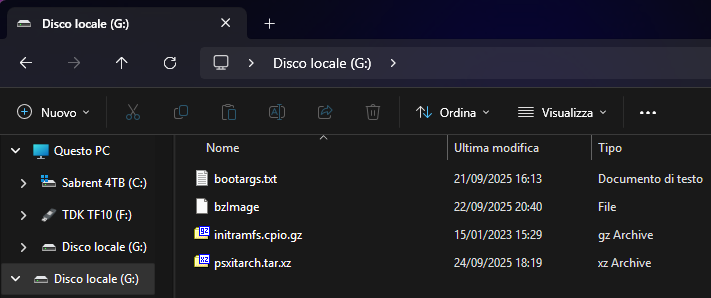
Put the kernel (bzImage, and the bootargs if you need it), initramfs (initramfs.cpio.gz), and your distro distro.tar.xz on the root of a FAT32 formatted drive, like so:
You will also need a separate drive for the Linux installation. This drive does not need to be formatted or partitioned beforehand, as the installation script will partition and format it automatically.
WARNING
Make sure you select the correct installation drive. Everything on the selected installation drive will be erased.
Launching Linux Rescue Shell
After that, either launch your payload with a payload website to load them, or use GoldHEN's built-in payloader if the website doesn't work for you.
NOTE
You'll need to be using GoldHEN v2.4b18.10 or higher to use the built-in payloader. Some users have reported that the payloads only work correctly when using the "Payload Guest" app.
TIP
Remember that the amount of VRAM you allocate is taken from your system memory! For a 2GB of VRAM payload, you'd have 8-2 = 6GB of remaining system RAM! You aren't creating memory out of thin air!
For servers
Server payloads are available in 32MB, 64MB, and 128MB VRAM variants. Use 128MB by default for server or general headless use, as 32MB and 64MB can cause display issues on some setups.
Payload website hosts
Firmware 5.05 - 13.52
WARNING
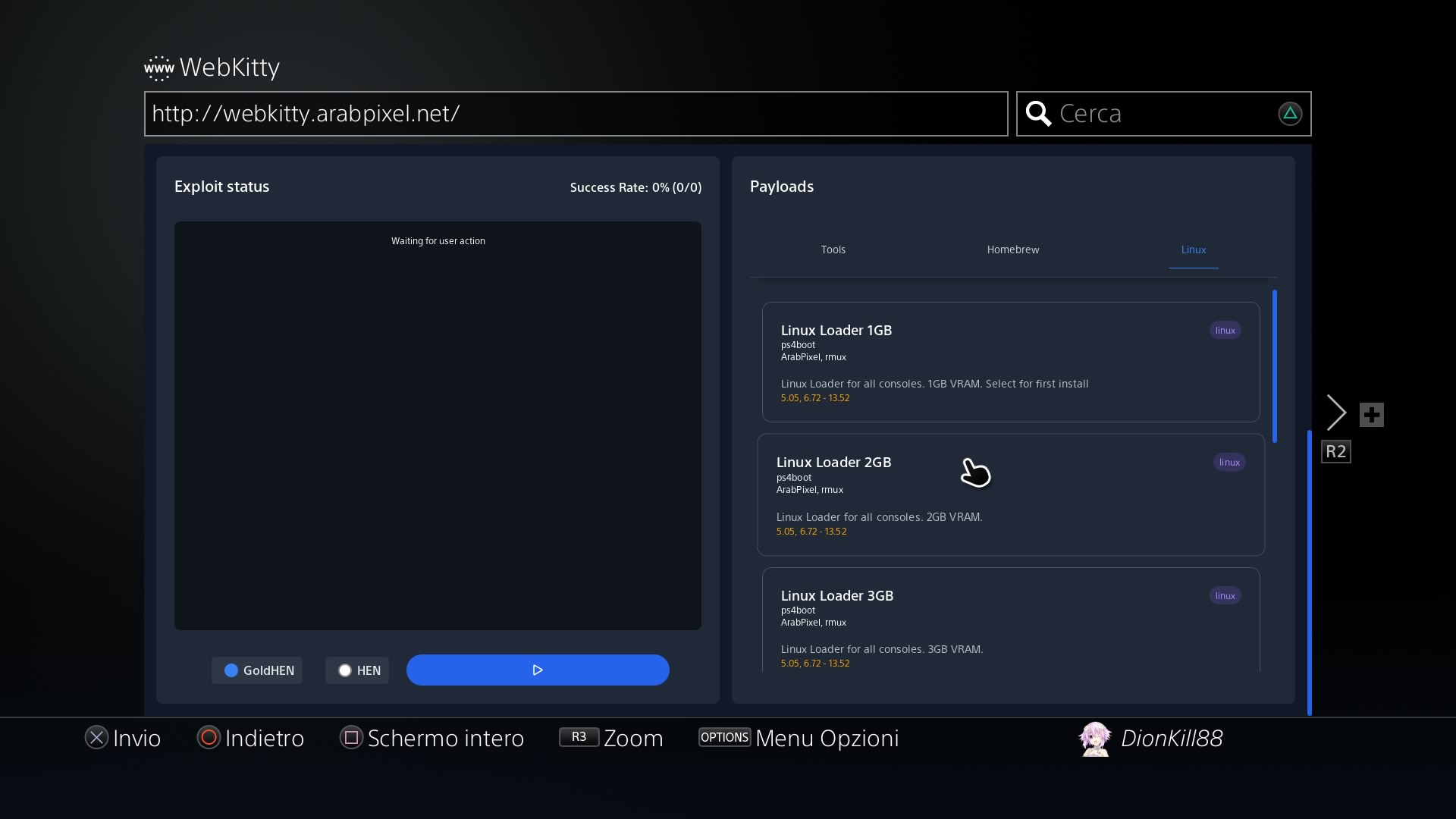
You MUST select 1GB of VRAM or less for installation and first boot. Afterwards, 2GB is recommended.
Do not use GoldHEN version v2.4b18.8, update it!
Follow these steps:
- Go to http://webkitty.arabpixel.net on your PS4's browser
- Scroll down with your right thumbstick, mouse, or keyboard
- Select Linux tab at the top right
- Wait for the cache to finish installing!
- Load your desired payload
- Again, 1GB or less is necessary for first time installation!
- If you use the PS4 as a server after installation, switch to one of the server payloads for more system RAM.
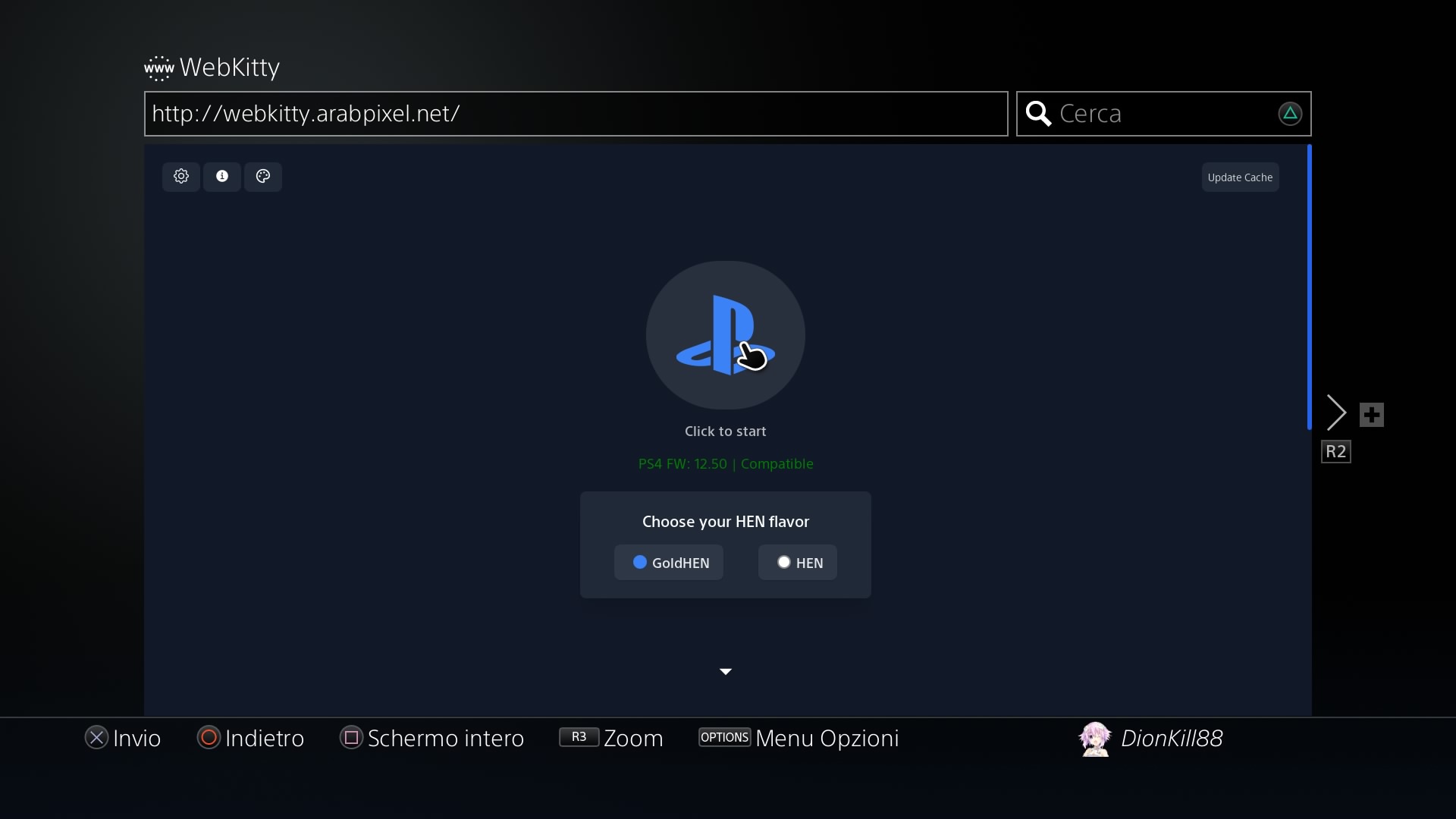
Local payloads (if website doesn't work for you)
If you so desire, or you can't launch it from the web browser for some reason, it's possible to load these payloads locally.
In order to do that, you need to download them here.
Local payloads setup (GoldHEN payloader)
- Extract from the ELF folders
- Using the
.elfseems to lead to a higher success rate when launching - Enable "see file extensions" on Windows Explorer or what you're using
- Using the
- Put the files in the
/data/payloads/directory, create it if it does not exist - Open the GoldHEN menu, then navigate to
Utilities>PayLoader>LaunchPadand select your desired payload - Remember to check here sometimes to see if there's any updates
Local payloads setup (Payload Guest)
- Install "Payload Guest" (or similar app) on your PS4
- Extract from the ELF folders, and rename the file to have a
.binextension instead of.elf, because Payload Guest can't load ELFs- Using the
.elfseems to lead to a higher success rate when launching - Enable "see file extensions" on Windows Explorer or what you're using
- Using the
- Put the files in the
/data/payloads/directory, create it if it does not exist - Open Payload Guest and select your desired payload (A controller is required, as Payload Guest does not accept keyboard input)
- Remember to check here sometimes to see if there's any updates
Installation commands
Now that the storage is covered, here comes the moment of truth. You'll be sent to the Rescue Shell, which will look like this:
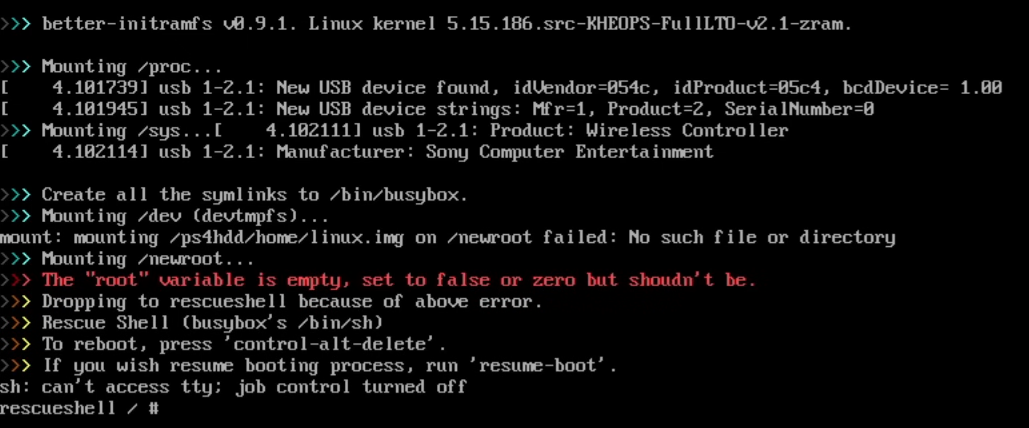
- If you have a disc in your console, remove it by running
eject /dev/sr0or it'll corrupt the installation - Connect both the FAT32 source drive containing the installation files and the separate installation drive.
- Type
install-linux-ext.sh- If it fails, go to the Installation Issues, or use the alternative method.
The script will automatically look for the drive containing the installation files. If it cannot find it, it will ask you to select the source drive, then ask you to select the installation drive.
Hydrate yourself while you wait. It'll take a while.
After that is done, it should boot into the desktop. If it doesn't, run
resume-bootWARNING
Don't run resume-boot more than twice, or it'll crash the system! Do CTRL+ALT+DELETE to reboot instead!
Finale
Go now, conquer the finale. Also, read the post-credit stuff.